Ddukddak Manual
A complete step-by-step guide to every feature in Ddukddak.
Follow along and you'll be up and running in minutes.
Table of Contents
STEP 01
Welcome
Introduction to Ddukddak
STEP 02
Try Demos
Try it without signing up
STEP 03
Dashboard
Your home screen
STEP 04
Template Library
Browse ready-made templates
STEP 05
Projects
Organize your templates
STEP 06
Editors
Design and create content
STEP 07
API Console
Test API calls directly
STEP 08
Logs
View generation results
STEP 01
Welcome to Ddukddak
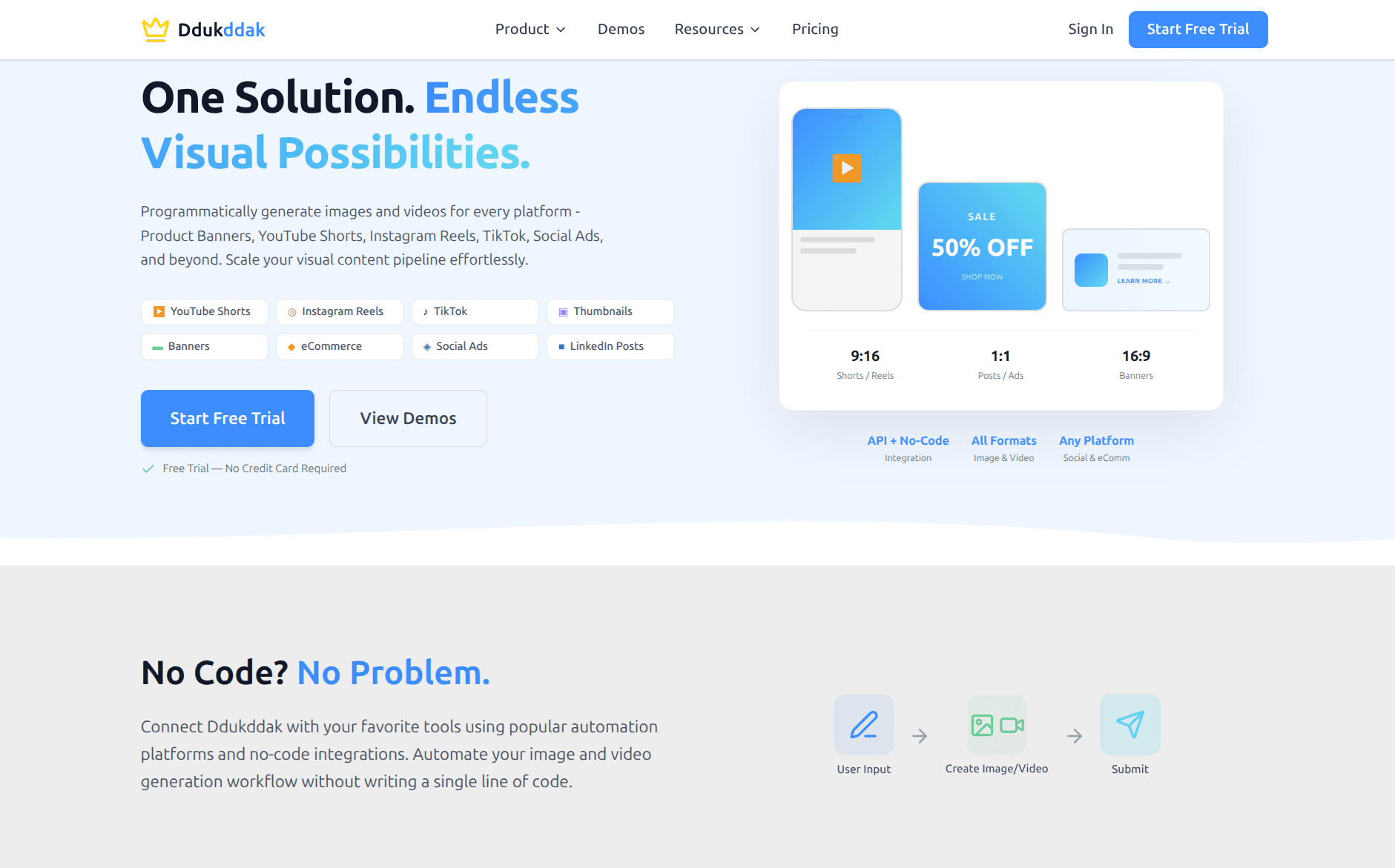
Ddukddak is a SaaS platform that automatically generates images and videos for you.
With Ddukddak, you can create visual content for any platform — product banners, YouTube Shorts, Instagram Reels, TikTok, social ads, and more — without writing a single line of code. For developers, our API and SDKs make it easy to automate content generation at scale.
Key Features
- - Template-based image and video generation
- - AI-powered image and video creation from text prompts
- - Drag-and-drop editor to design your own templates
- - REST API for bulk content automation
- - SDKs for Node.js, Python, and TypeScript
STEP 02
Try Demos
No sign-up required. Try the demo pages to generate images and videos instantly.
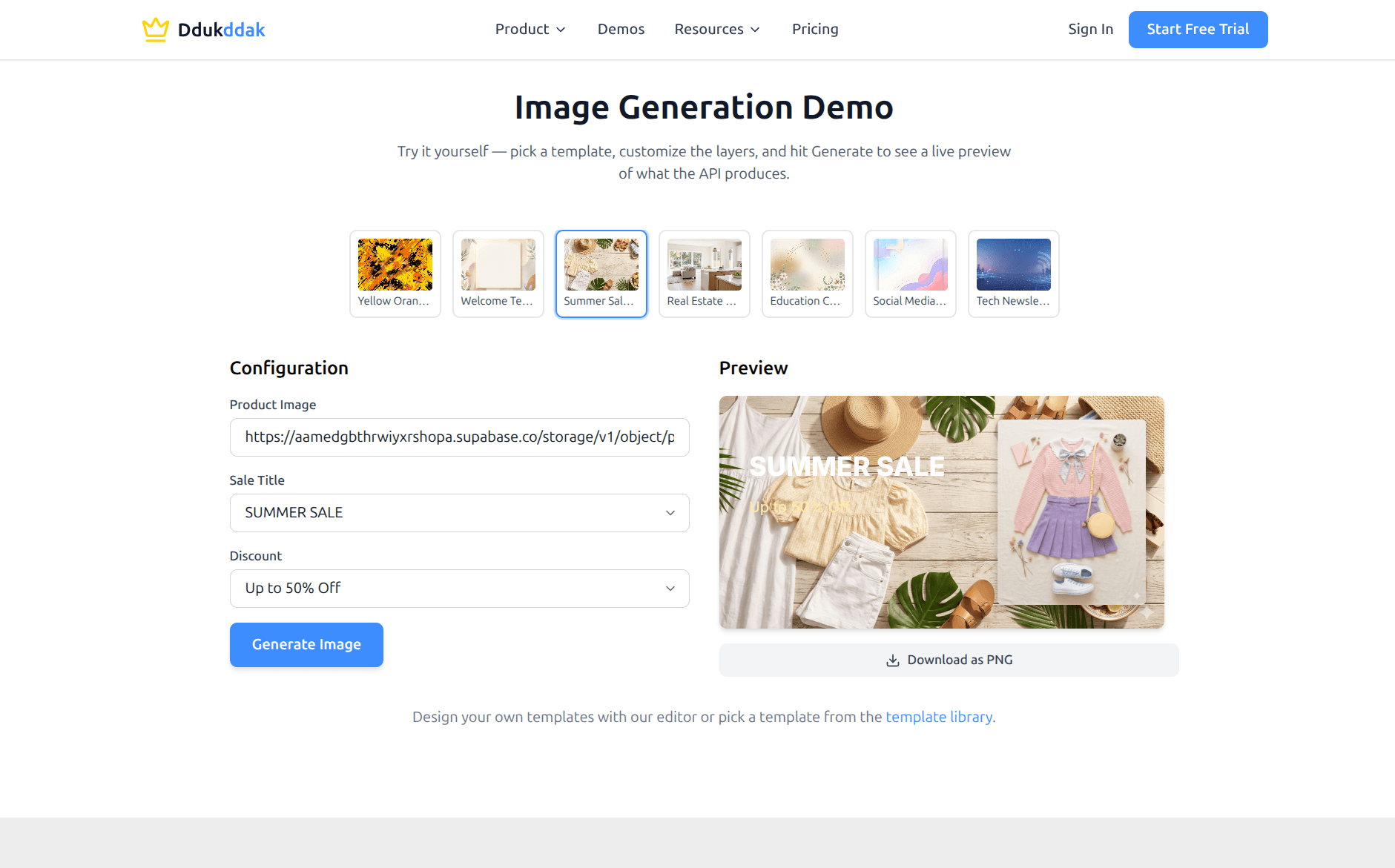
Image Generation Demo
Pick a template, enter your text or image URL, and click "Generate Image" to see the result right away.
- 1Go to Demos > Image Generation Demo from the top menu.
- 2Select a template (e.g., Summer Sale, Real Estate, etc.).
- 3Fill in the Configuration panel on the left with your text and image URLs.
- 4Click "Generate Image" — the preview appears on the right.
- 5Click "Download as PNG" to save your image.
Video Generation Demo
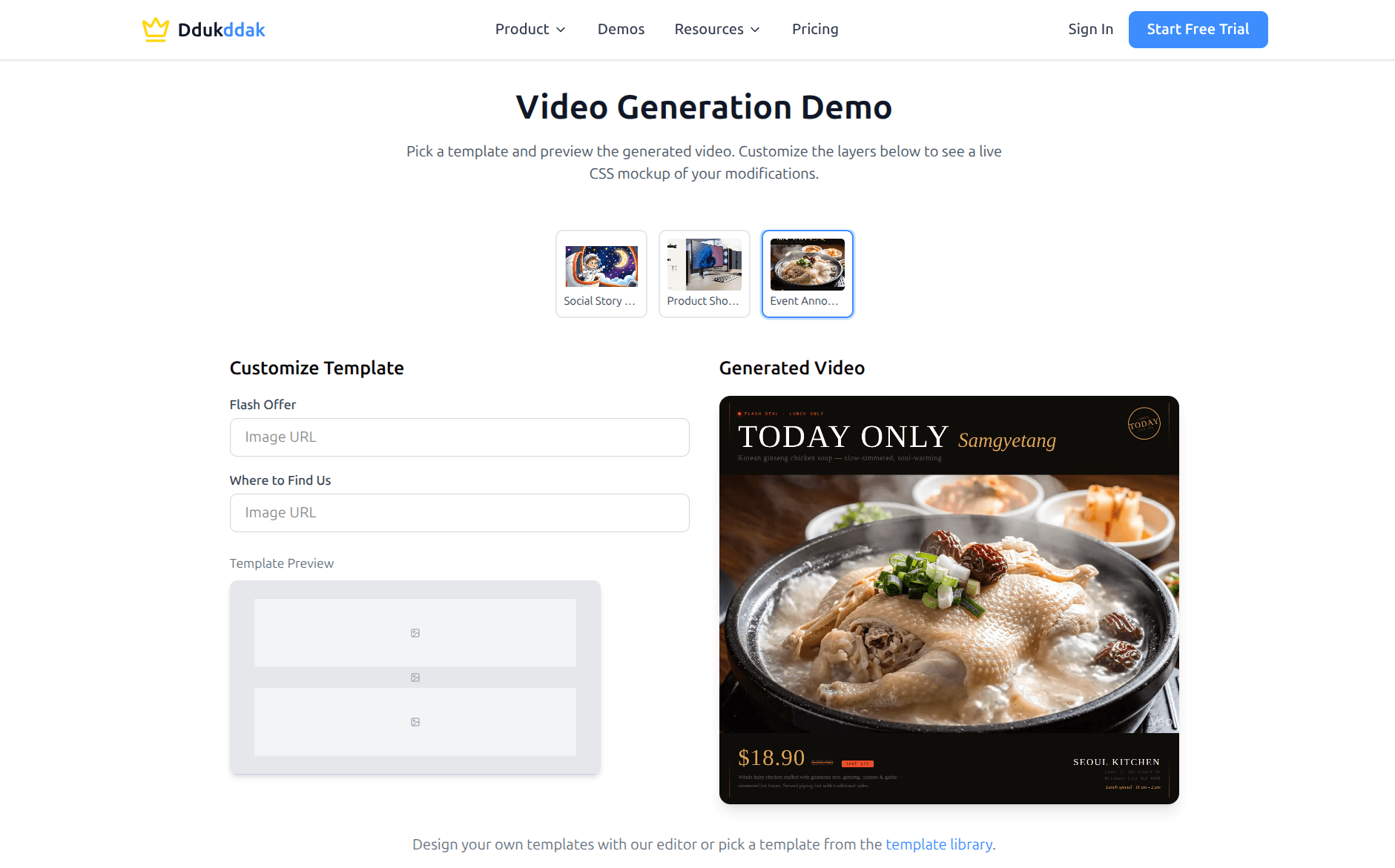
Video templates work the same way. Enter your image URLs and text, and a video is generated automatically.
- 1Go to Demos > Video Generation Demo from the top menu.
- 2Select a video template (e.g., Social Story, Product Showcase, etc.).
- 3Preview the generated video on the right.
SDK Code Examples
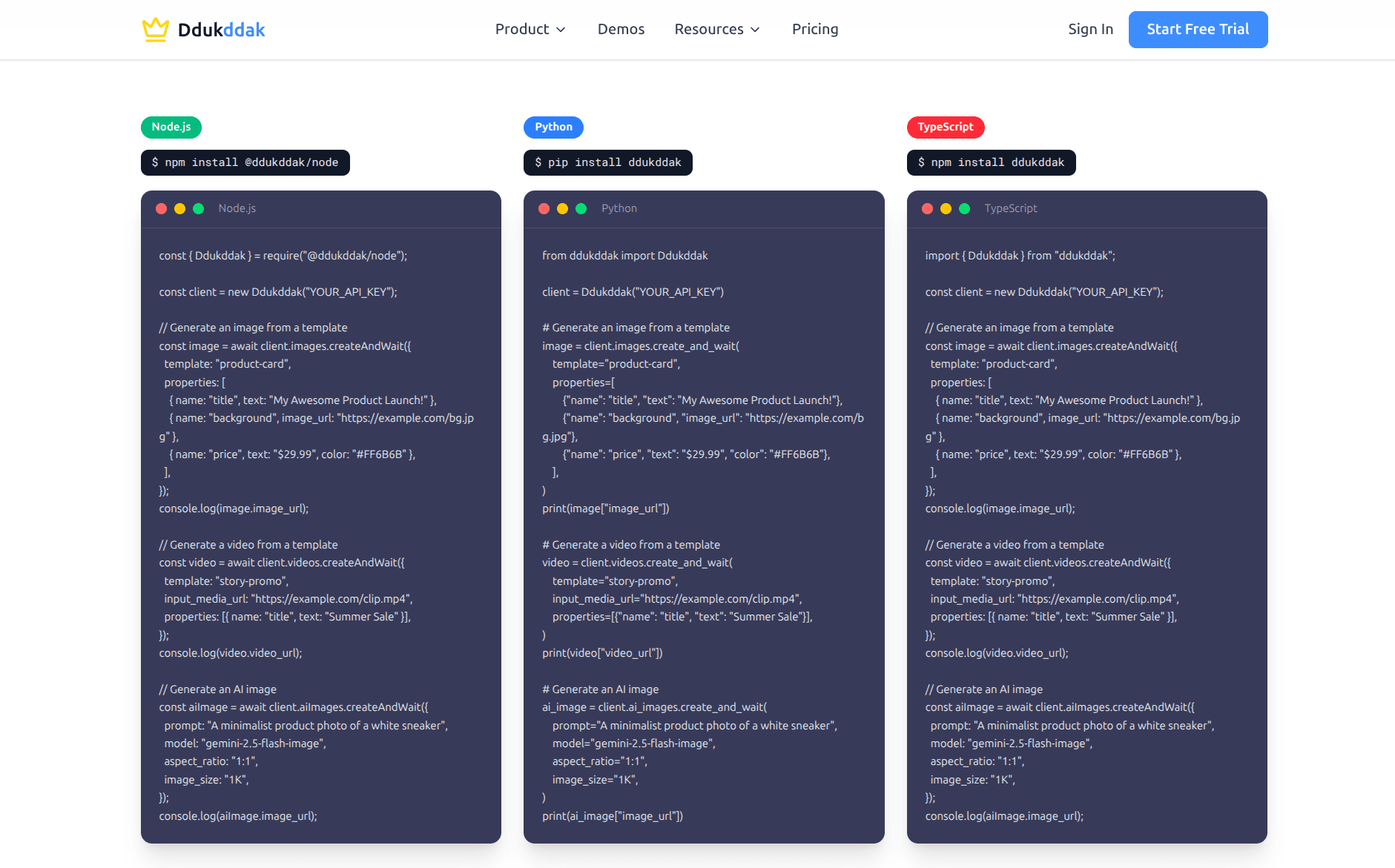
If you're a developer, you can generate images and videos with just a few lines of code. We support Node.js, Python, and TypeScript SDKs.
STEP 03
Dashboard
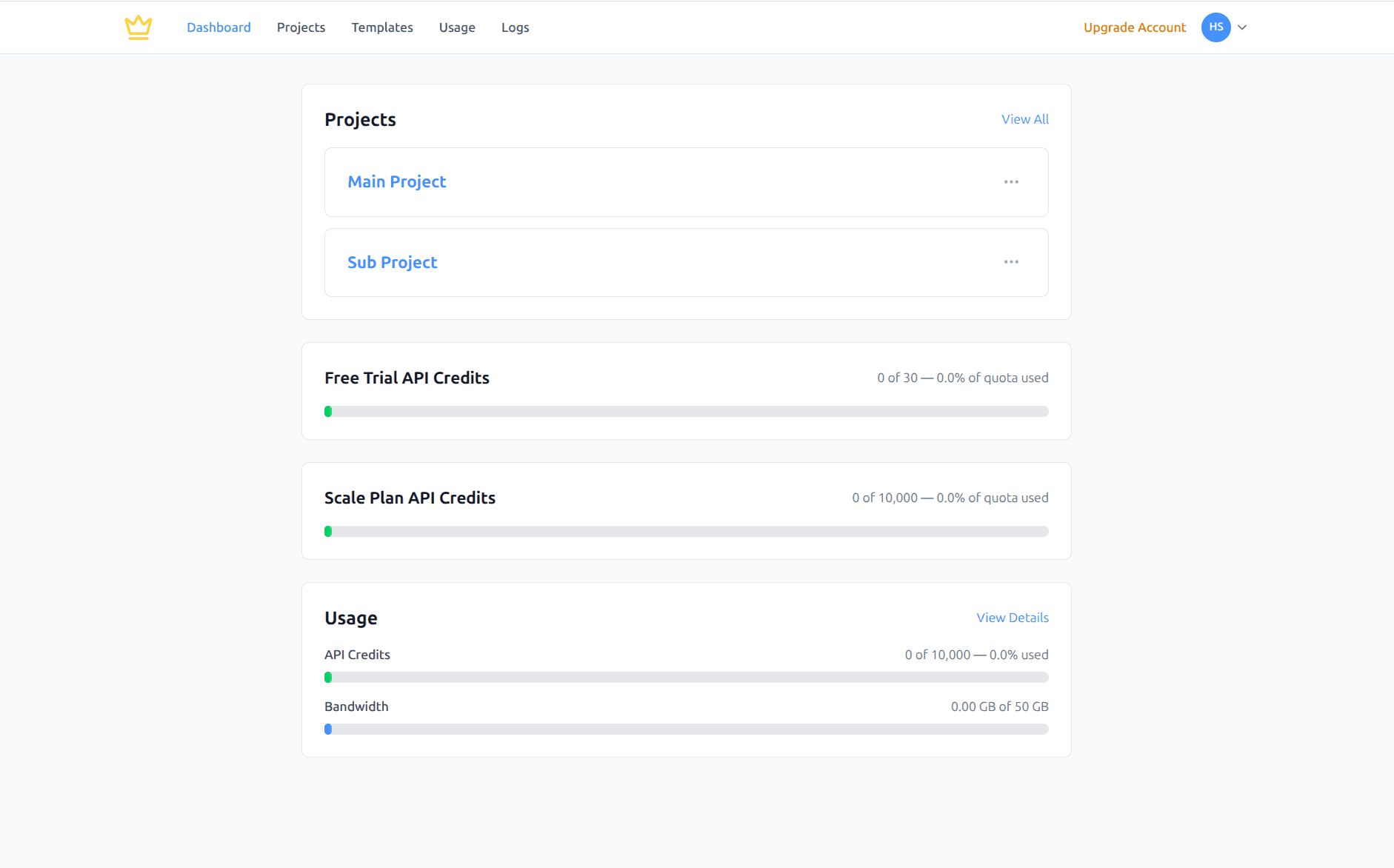
The first screen you see after signing in. Check your projects, API credits, and usage at a glance.
- 1Sign up or sign in to access the Dashboard.
- 2View your project list in the Projects section.
- 3Check your remaining Free Trial API Credits.
- 4Monitor your API call count and bandwidth in the Usage section.
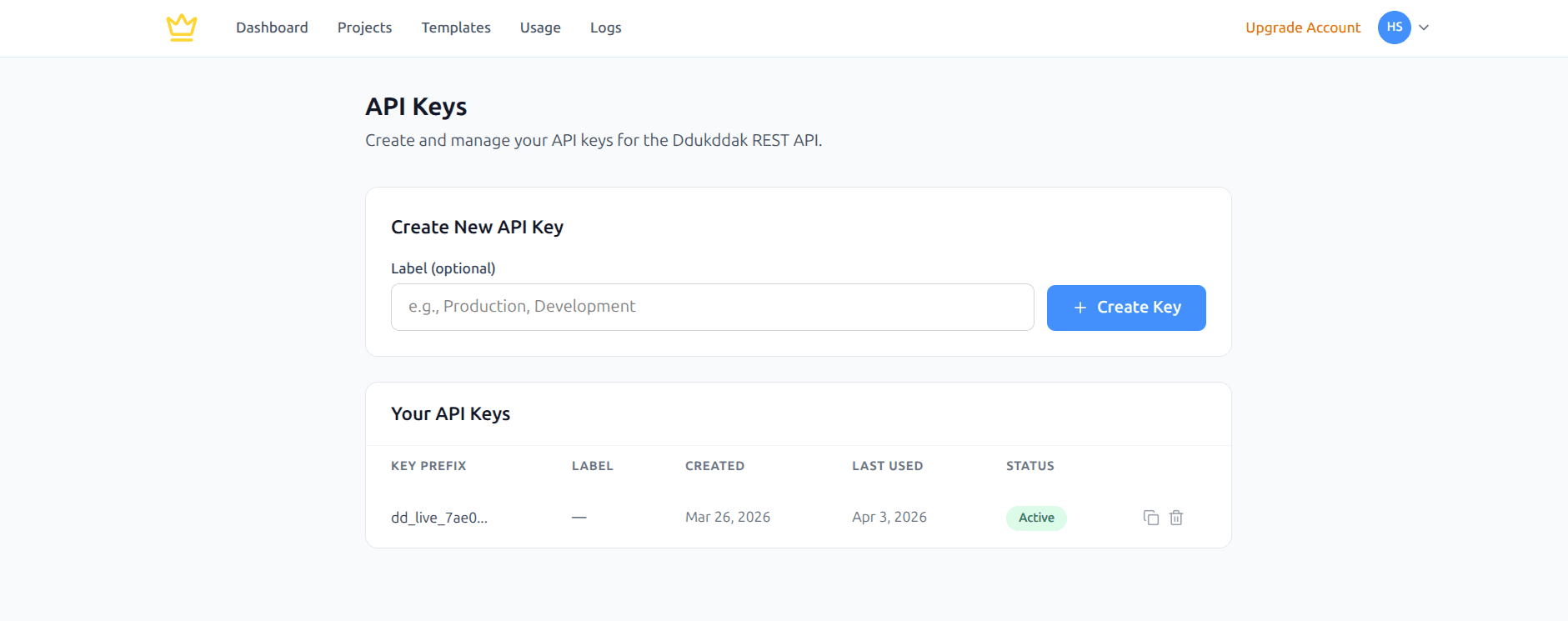
API Keys
Create and manage API keys to authenticate your REST API calls. You can generate multiple keys with optional labels to separate production and development environments.
- 1Navigate to Dashboard > Settings > API Keys.
- 2Enter an optional label (e.g., Production, Development) and click "+ Create Key".
- 3Copy the generated key — it will only be shown once.
- 4Use the key in your API requests via the x-api-key header.
STEP 04
Template Library
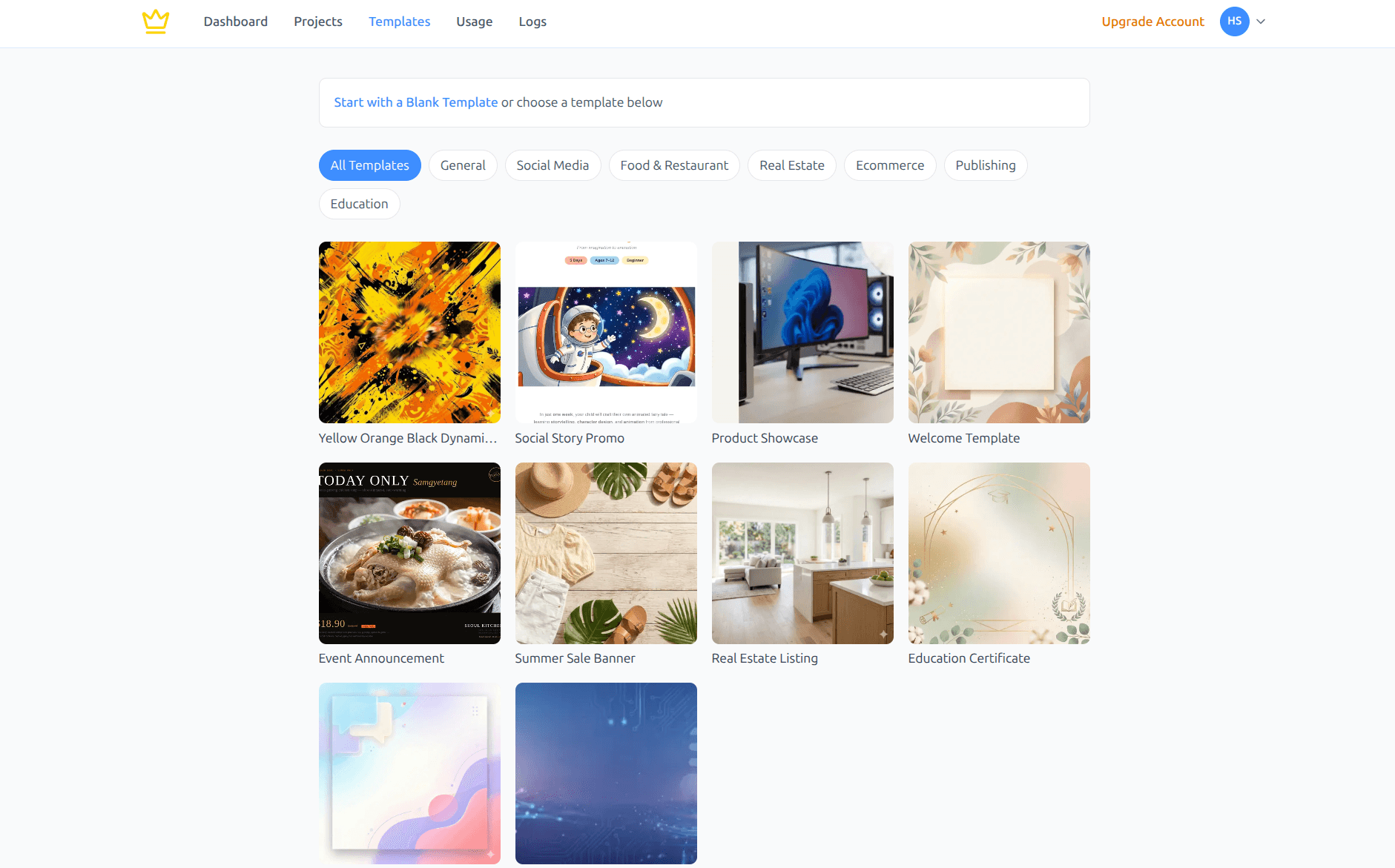
Browse templates by category and start using them right away.
- 1Click Templates in the top menu.
- 2Filter by category tabs (General, Social Media, Food & Restaurant, Real Estate, etc.).
- 3Click any template to go to its detail page.
- 4Or select "Start with a Blank Template" to design from scratch.
STEP 05
Projects
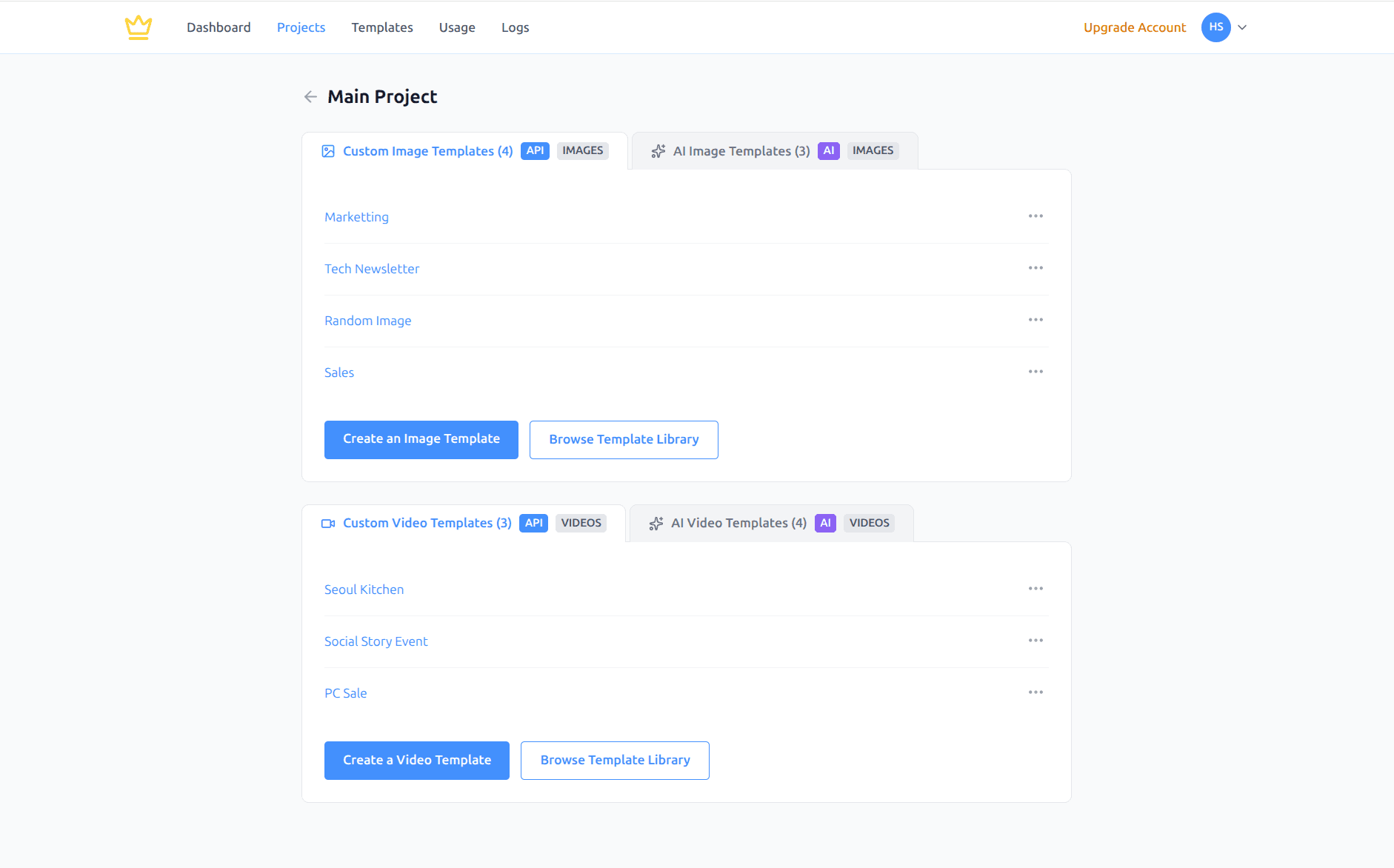
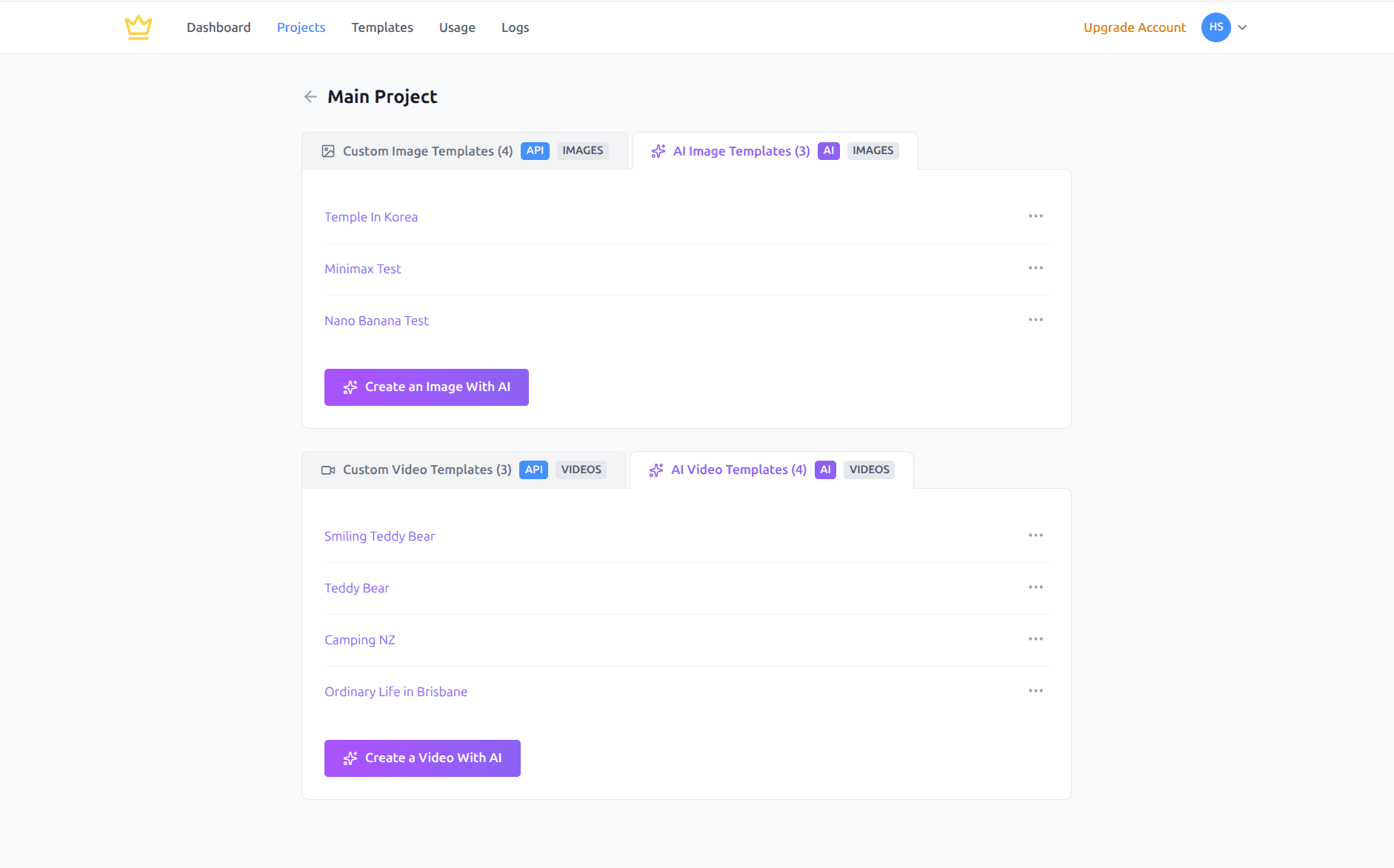
Use projects to group and organize your templates by purpose or campaign.
- 1Click Projects in the top menu.
- 2Select a project to see all templates that belong to it.
- 3Use the Custom Image/Video Templates tab for API-based templates.
- 4Use the AI Image/Video Templates tab for AI-powered templates.
- 5Click the "..." button on any template for options like View, Edit, Rename, Duplicate, or Delete.
Custom Templates (API)
Custom templates are designed in the editor and can be called via API to generate images and videos at scale.
AI Templates (API)
AI templates generate images and videos from text prompts alone. No design work needed — just describe what you want and the AI creates it. These templates are also available via API for automated generation at scale.
STEP 06
Editors
Design your own templates in the editor, or use AI to generate images and videos from text.
Template Editor
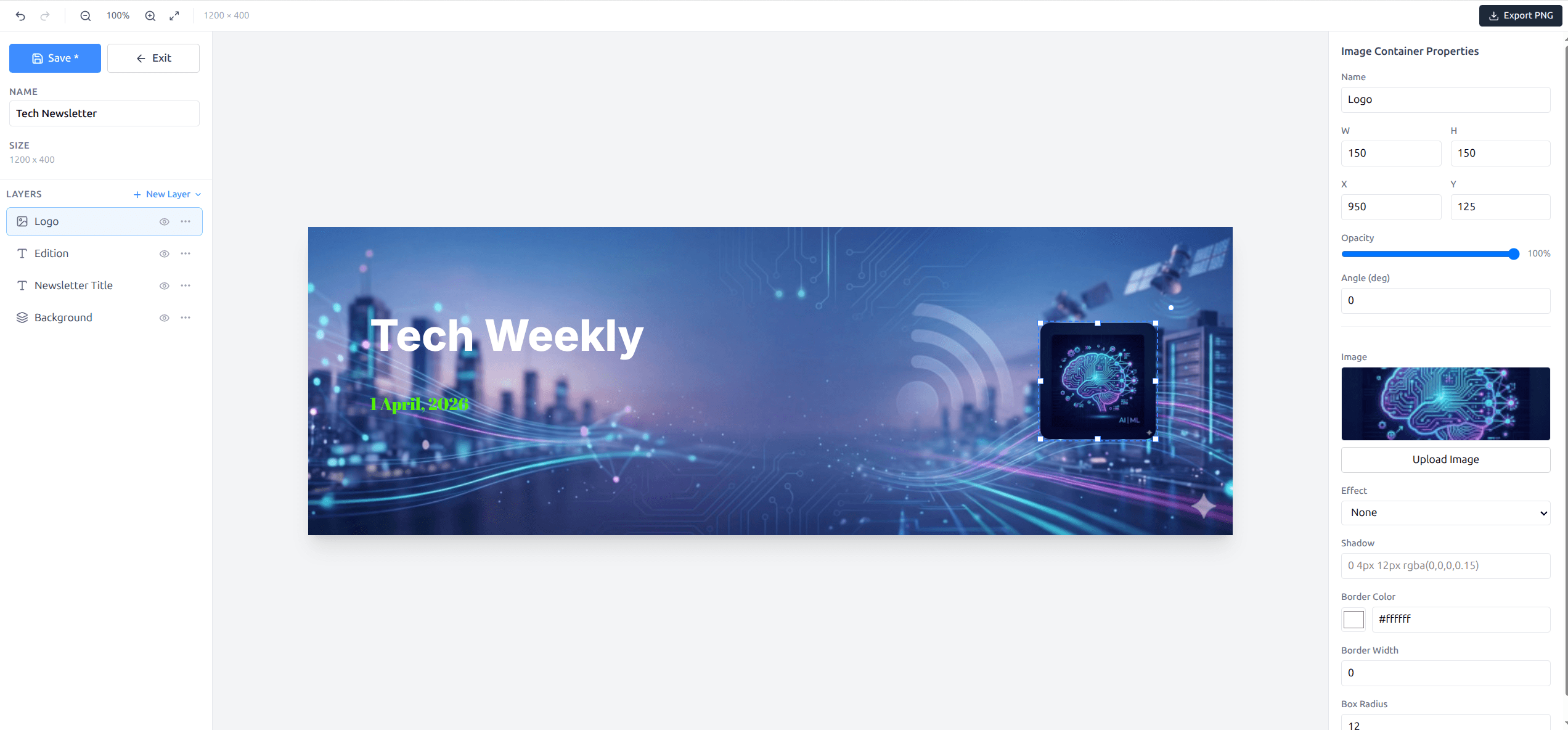
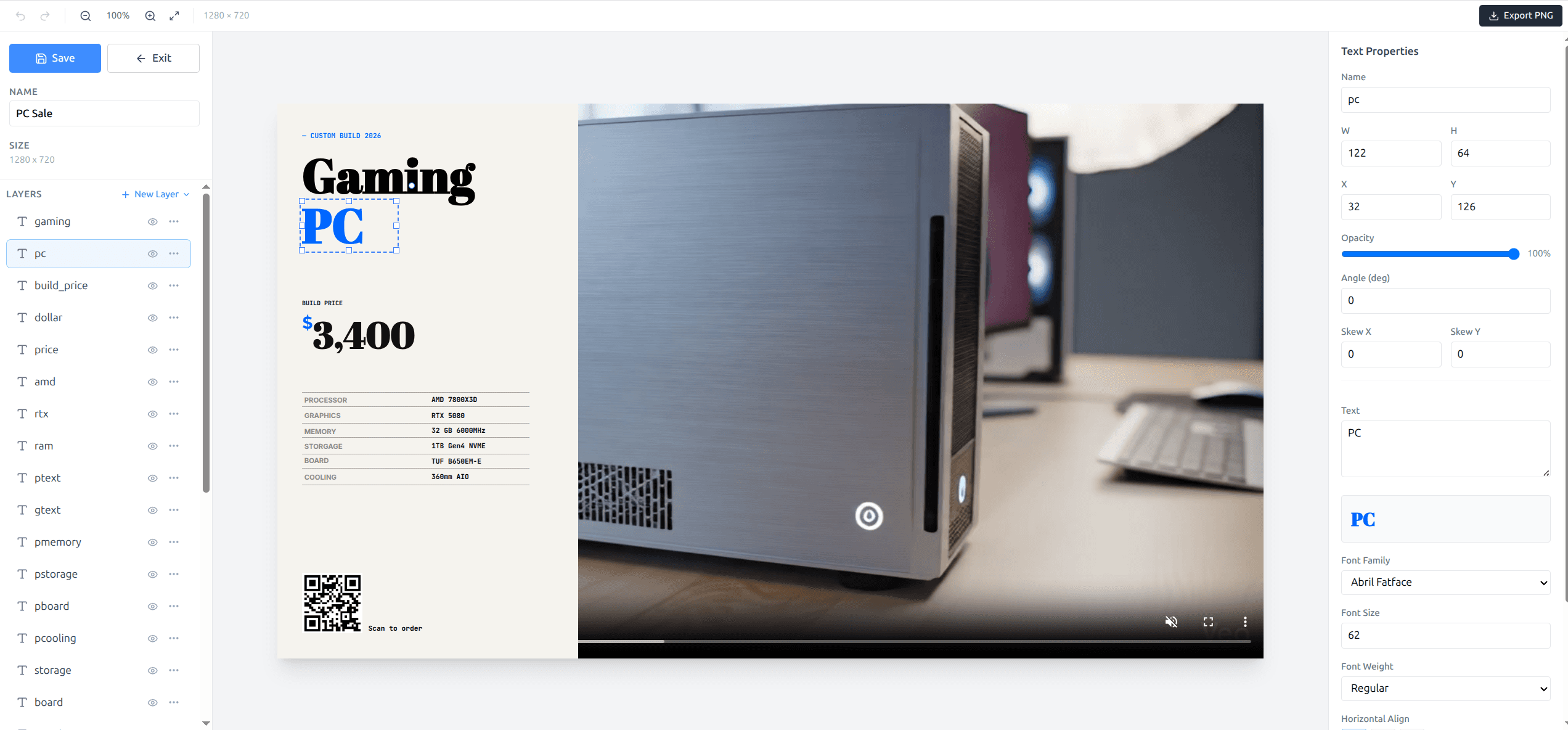
A layer-based editor for designing both image and video templates. Add text, images, videos, QR codes, and more — then adjust position, size, and style freely.
- 1In the left panel, view your layers and click "+" to add a new one.
- 2Click a layer on the canvas to select it, then drag to reposition.
- 3In the right panel, edit the selected layer's properties (text, font, color, size, etc.).
- 4Click "Save" at the top to save your template.
AI Image Editor
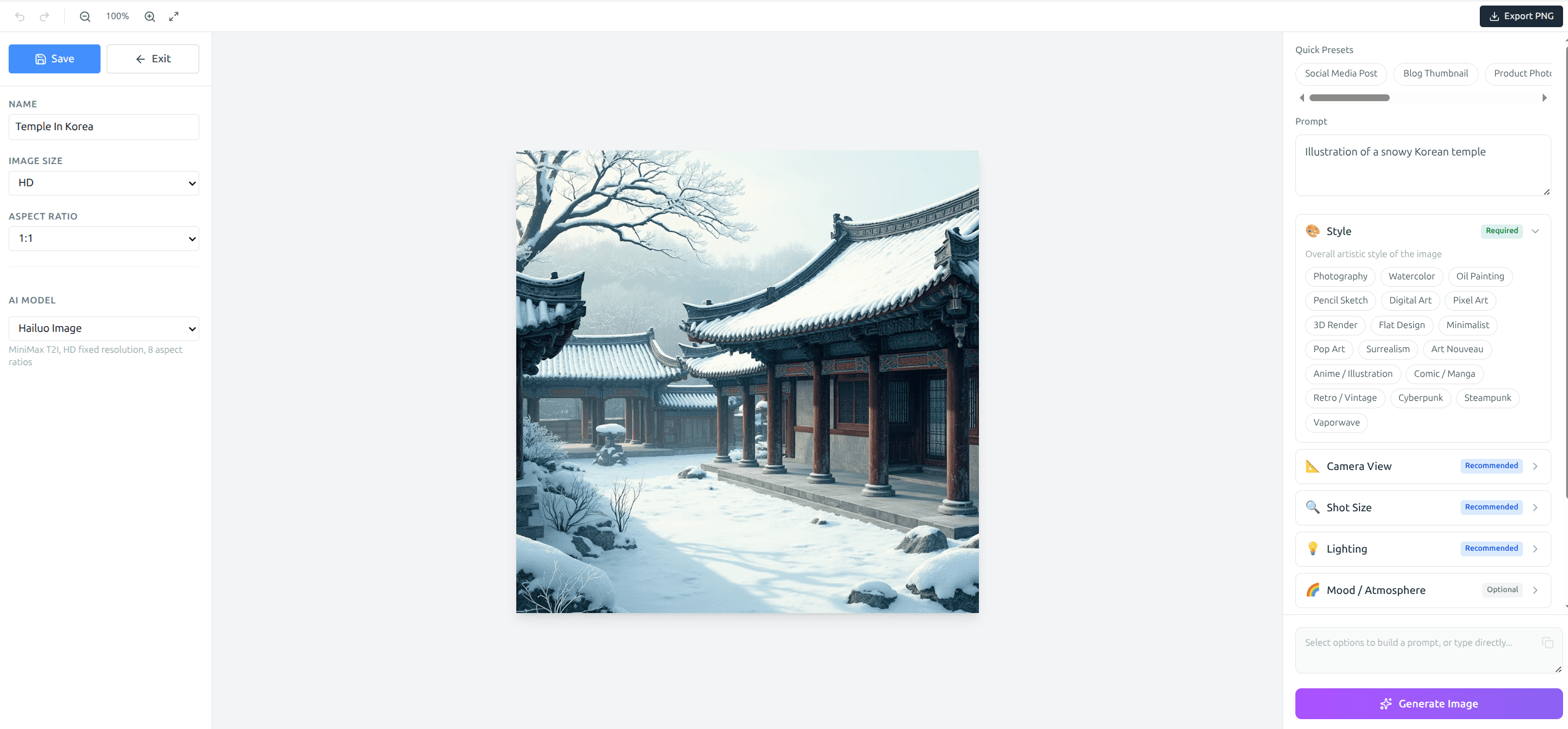
Enter a text prompt and the AI generates an image for you. Fine-tune with style, camera view, lighting, and mood settings.
- 1Set the image name, size, and aspect ratio on the left.
- 2Enter a prompt on the right panel or choose from Quick Presets.
- 3Adjust Style, Camera View, Mood, and Lighting options.
- 4Click "Generate Image" to create your AI image.
AI Video Editor
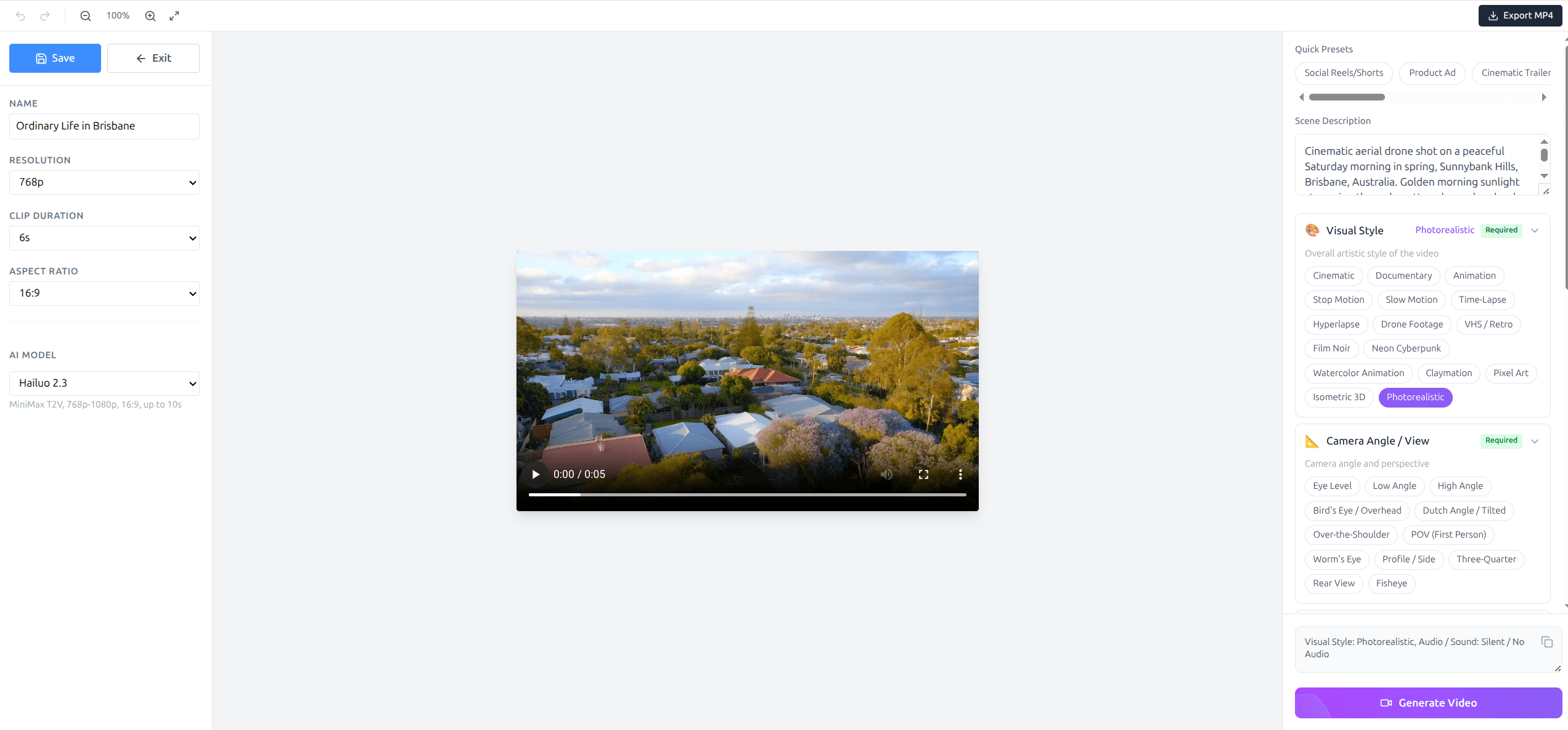
Generate AI videos from text prompts. Configure visual style, camera angle, resolution, and clip duration.
- 1Set the video name, resolution, clip duration, and aspect ratio on the left.
- 2Describe the scene in the Scene Description field on the right.
- 3Choose Visual Style and Camera Angle options.
- 4Click "Generate Video" to create your AI video.
STEP 07
API Console
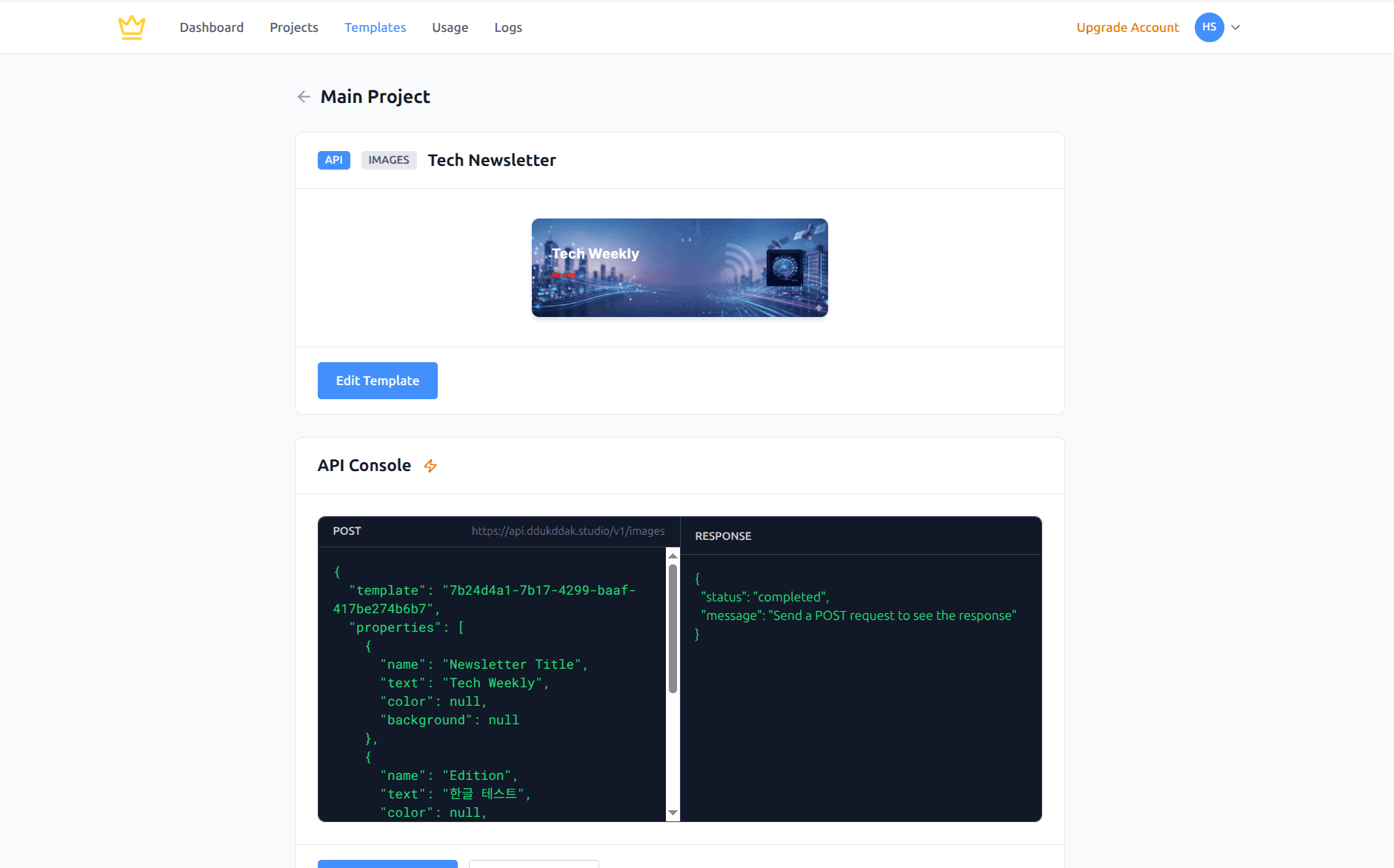
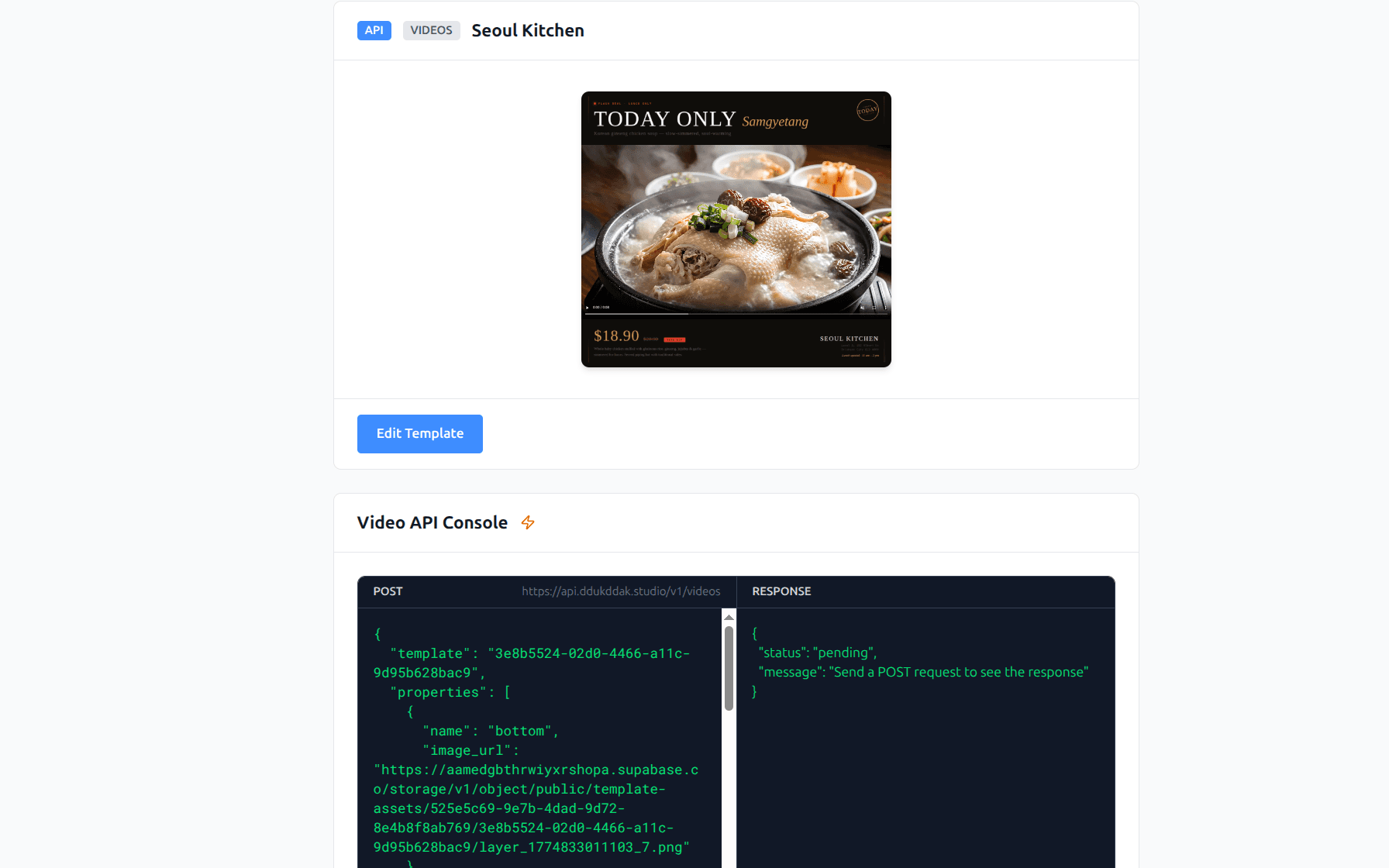
Test API calls directly from the template detail page — no code required.
- 1Open any template from your project to go to its detail page.
- 2Review the template preview and basic information at the top.
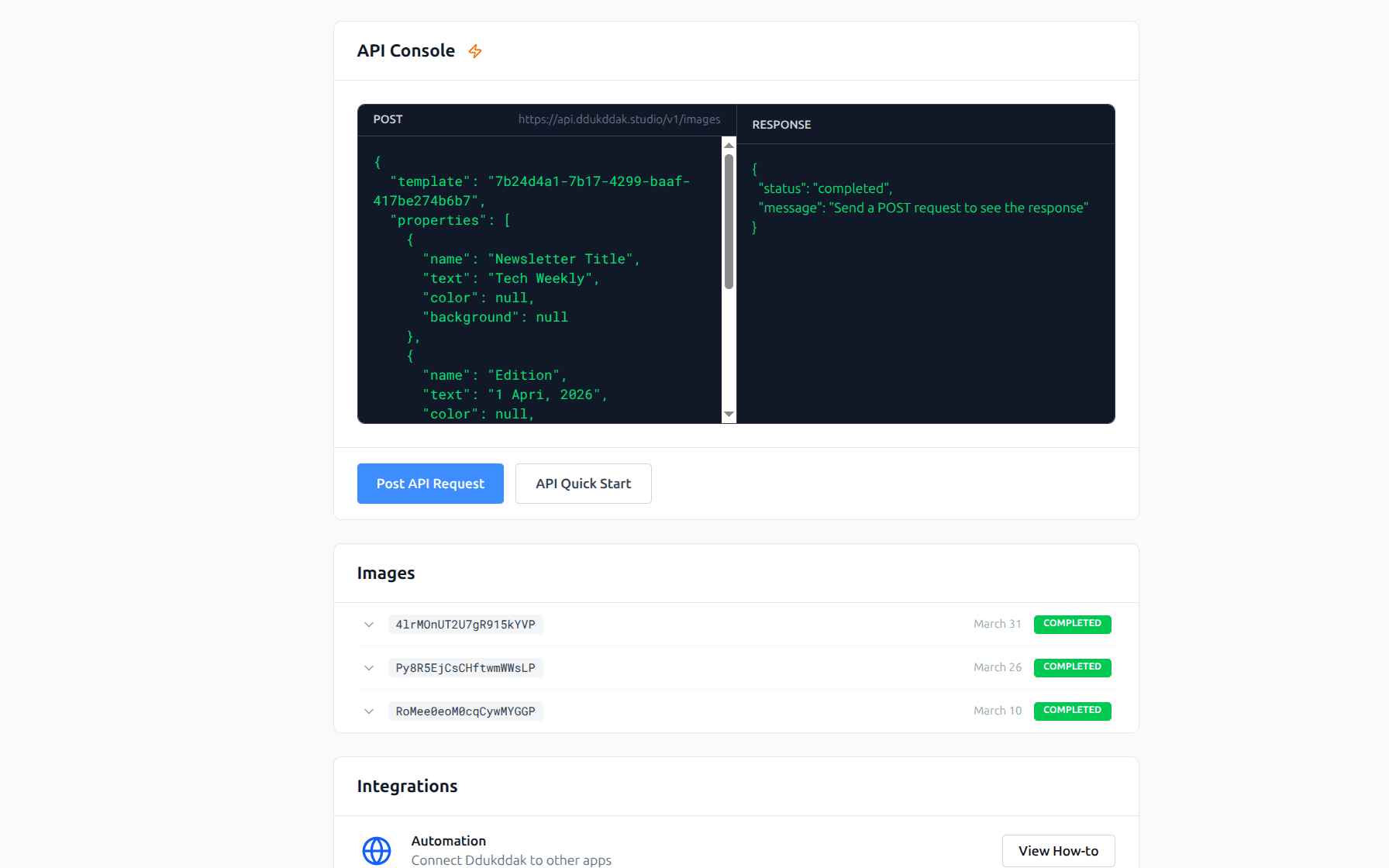
- 3In the API Console section, edit the properties in the left POST panel.
- 4Click "Post API Request" — the result appears in the right RESPONSE panel.
- 5Scroll down to see the list of generated images or videos.
Image API Console
Video API Console
STEP 08
Logs
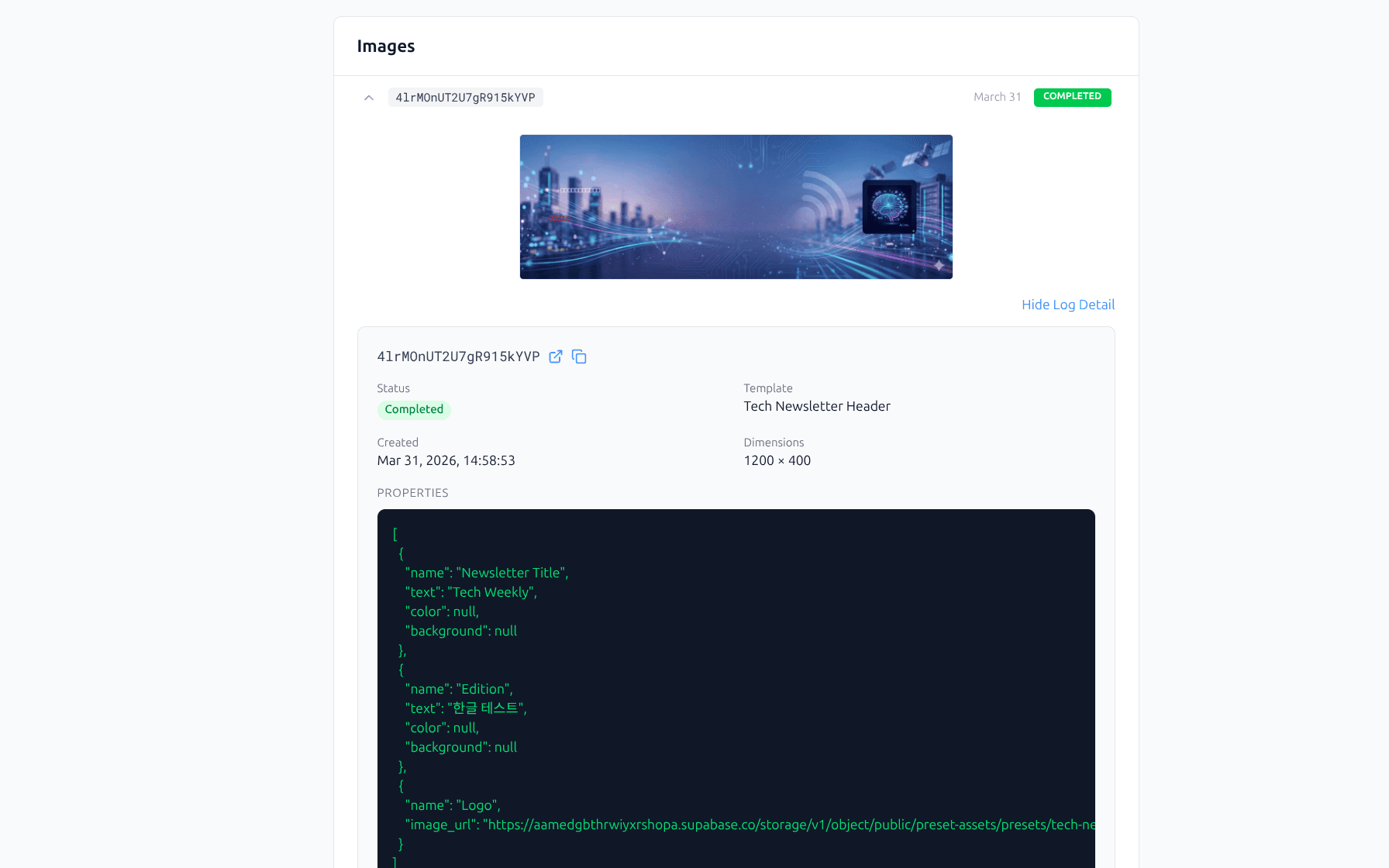
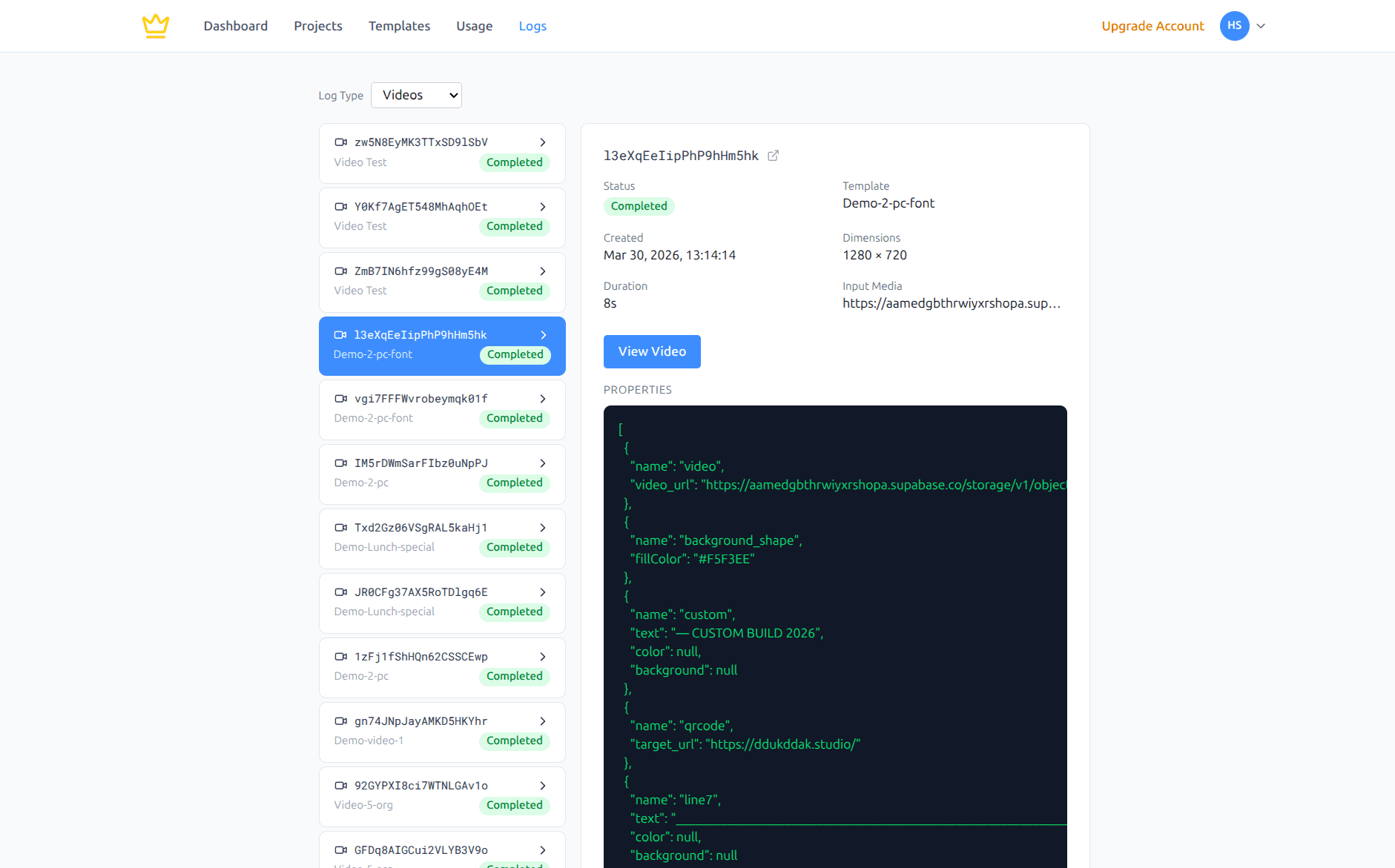
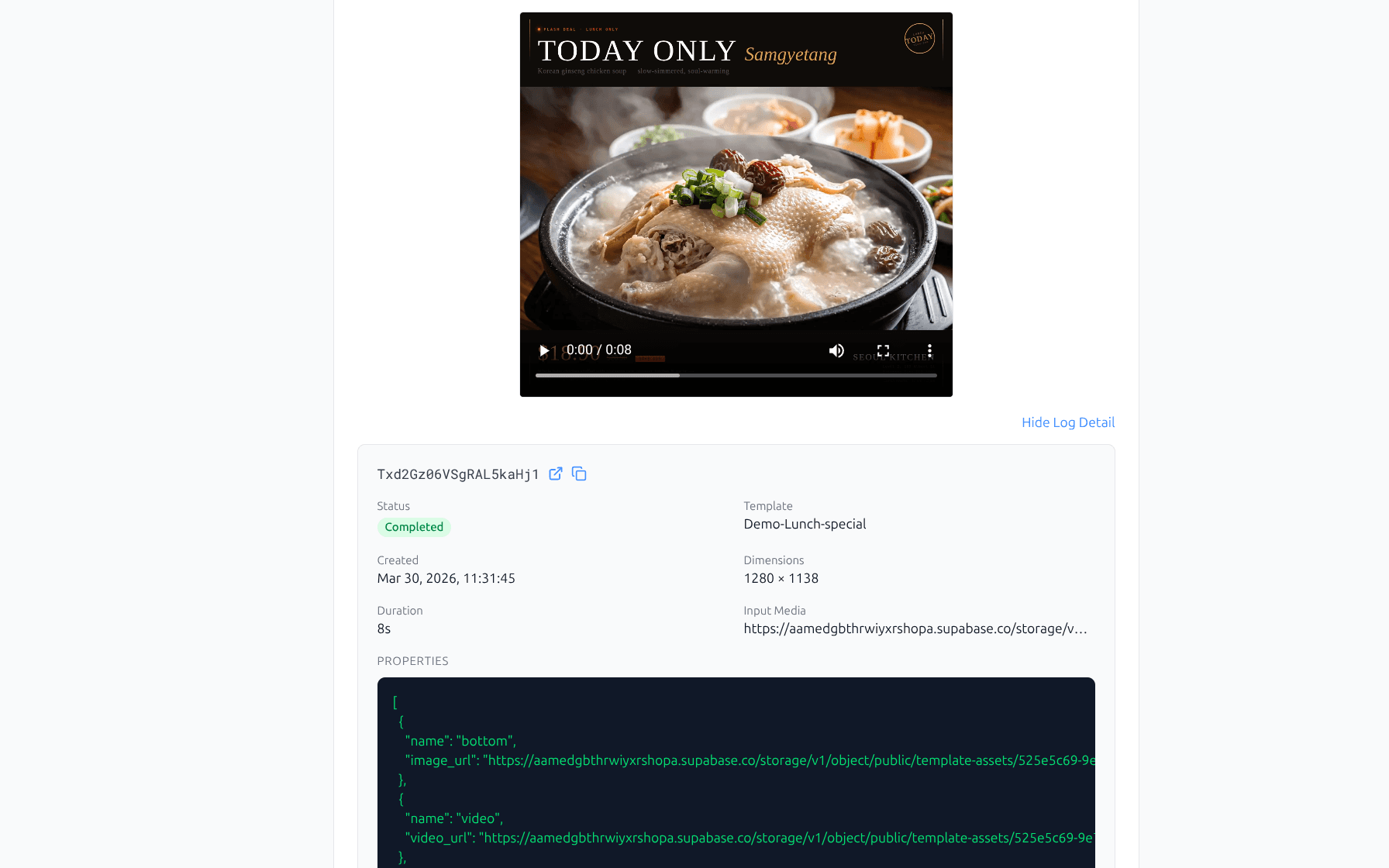
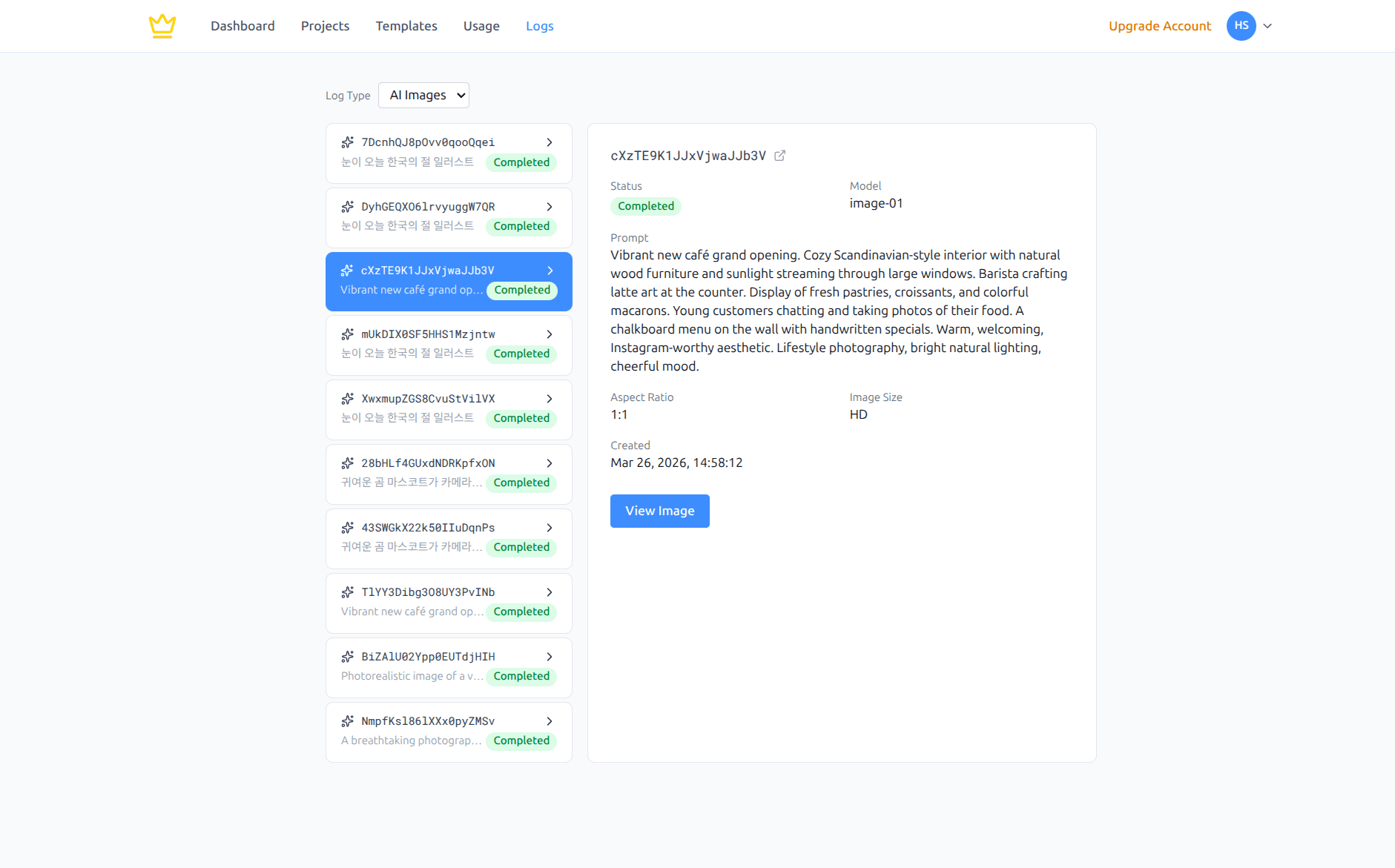
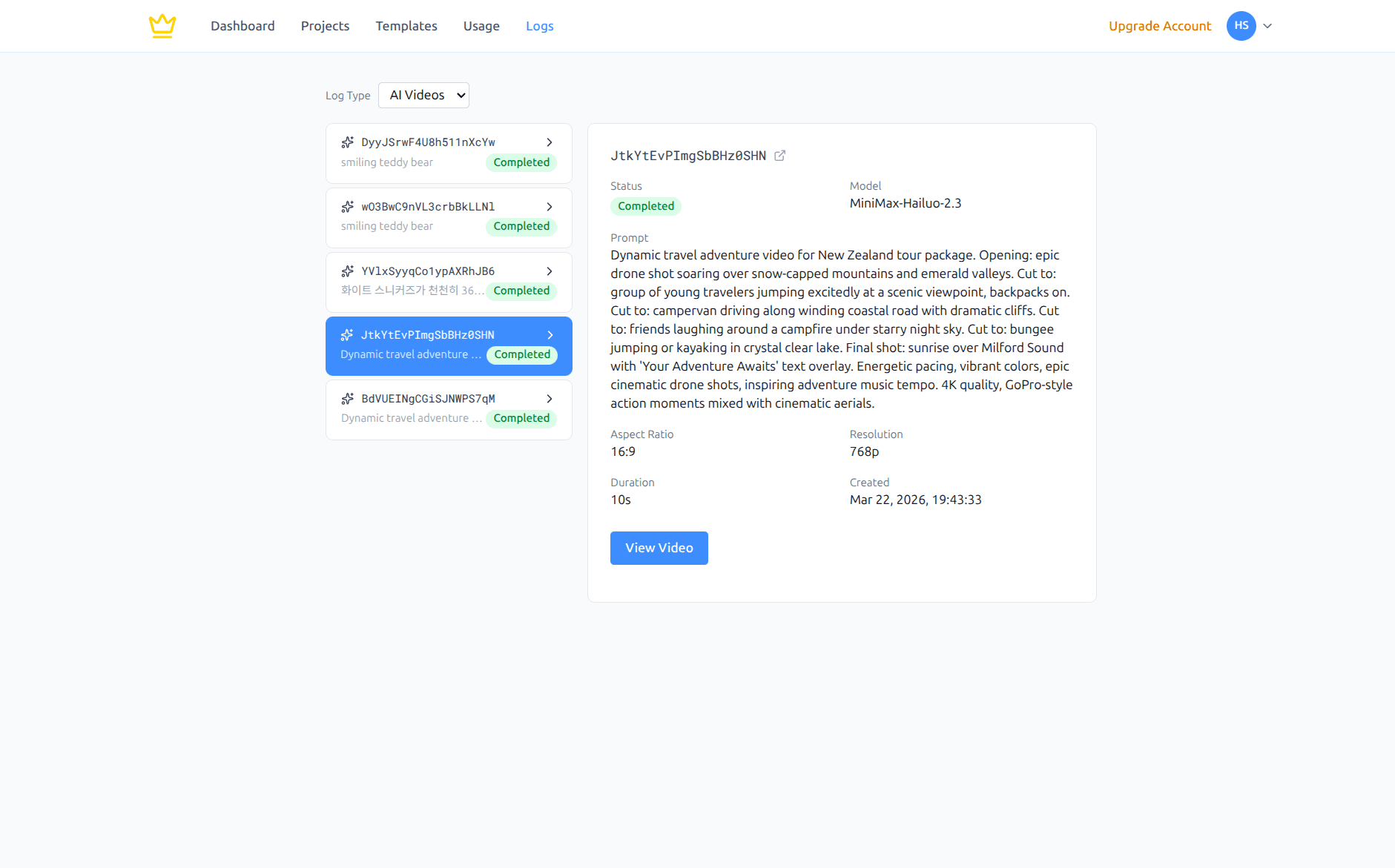
View all your generated images and videos. Check status, details, and download results — all in one place.
- 1Click Logs in the top menu.
- 2Select a log type from the dropdown: Images, Videos, AI Images, or AI Videos.
- 3Click any log entry on the left to see its details on the right.
- 4For completed items, click "View Image" or "View Video" to see the result.
Image Logs
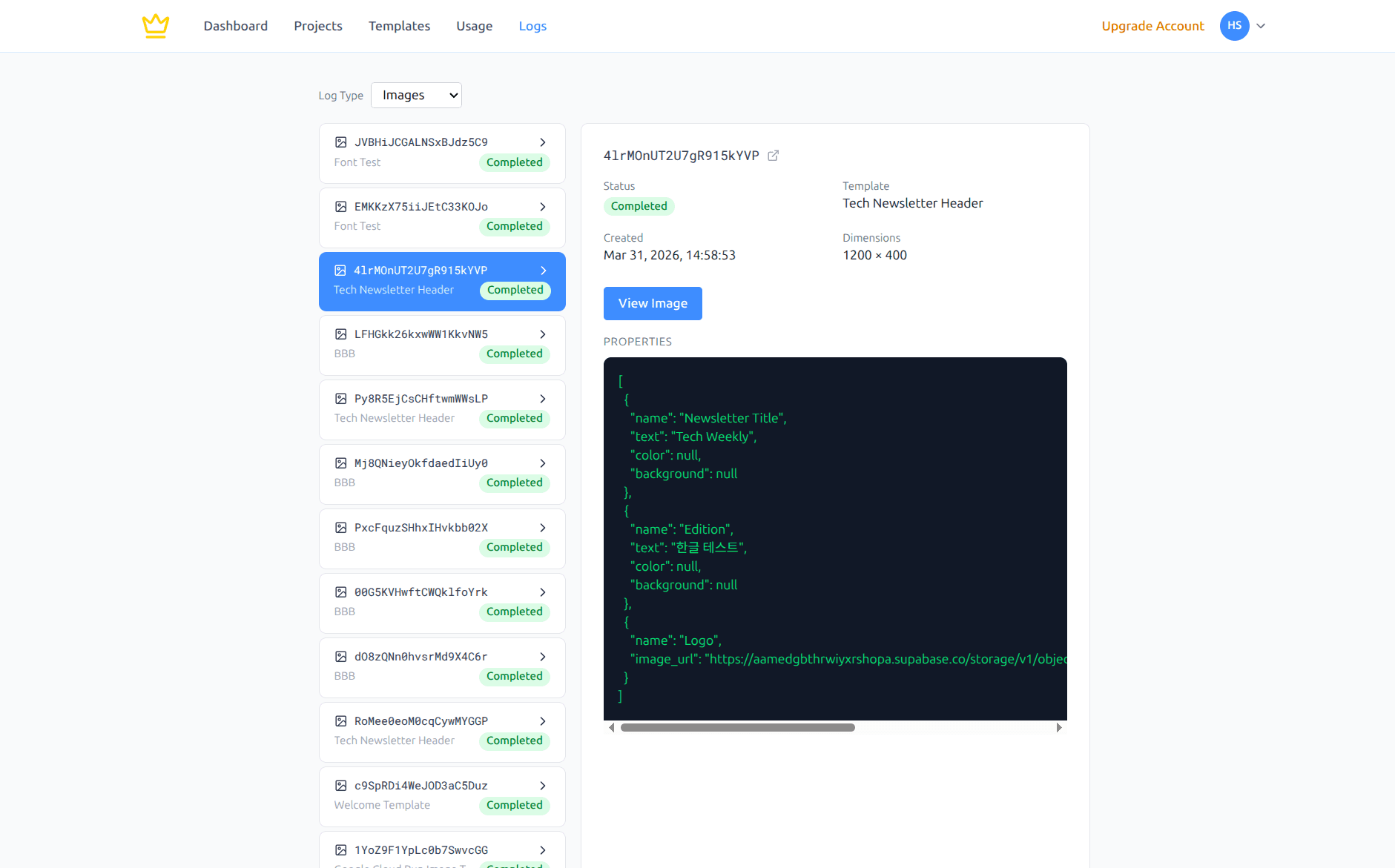
Image Log Detail
Video Logs
Video Log Detail
AI Image Logs
AI Video Logs
Ready to Get Started?
Start for free today. No credit card required.